Showing posts with label AWS Lambda. Show all posts

Deploying a .NET Core Lambda Project from the .NET Core CLI

In my previous post about "Creating a Lambda function in .NetCore with Visual Studio and AWS Visual Studio Toolkit  we learnt about how to create a lambda function in .net core and deploy it using Visual Studio Toolkit.

The deployment part can also be accomplished from command line using ".NET Core Global Tools for AWS". To install the .Net core global Lambda tools, use the following command in dotnet command line

dotnet tool install --global Amazon.Lambda.Tools --version 3.3.0

It will install the 3.3.0 (current version) of Lambda global tools. If you want to update the global tools you can use it as
dotnet tool update -g Amazon.Lambda.Tools

Deploy Lambda using Global Lambda Tools

Before going to deployment of lambda using Lambda global tools, first you need to understand about the "aws-lambda-tools-defaults.json" file. The file seems as below

{
  "Information": [
    "This file provides default values for the deployment wizard inside Visual Studio and the AWS Lambda commands added to the .NET Core CLI."
  ],

  "profile":"default",
  "region" : "us-east-1",
  "configuration": "Release",
  "framework": "netcoreapp2.1",
  "function-runtime": "dotnetcore2.1",
  "function-memory-size": 256,
  "function-timeout": 30,
  "function-handler": "Lambda::Lambda.Function::FunctionHandler",
  "function-name": "LambdaTest",
  "function-role": "arn:aws:iam::XXXXXXXXXXXX:role/service-role/lambda_basic_execution",
  "environment-variables" : "\"SourceQueue\"=\"source-queue\";\"TargetQueue\"=\"target-queue\";\"ErrorSns\"=\"my-error-sns\""
}
This file has a role for both manual and automated deployments. When you publish with AWS Visual Studio toolkit, the fields are pre-populated with the values from this file.When you use the command line interface, it will use the values specified in this file unless we override those in the command 

Following are some important settings

1) function-handler: This is how you tell AWS Lambda which method to invoke.  It is made up of 3 parts:

  a) Assembly / Namespace name (May be the same as the assembly name if your project isn't complex enough for a namespace heirarchy.)
  b) Class name along with Namespace
  c) Method name

2) function-name: Name of the lambda function in AWS
3) function-role: IAM role arn for executing Lambda.
4) environment-variables: Environment variables which needs to execute the lambda.

Once the settings are correctly placed, open the dotnet command line, navigate to the project folder and run the following command

Note: Your should install & configure the AWS CLI [https://aws.amazon.com/cli/] before running the below commands 

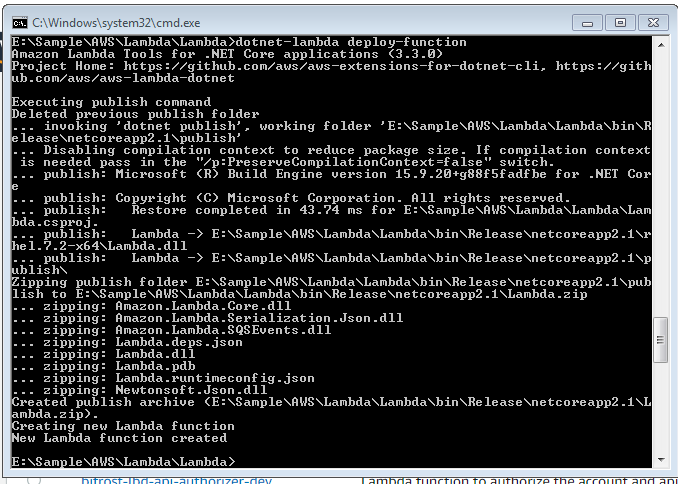
dotnet-lambda deploy-function 
Note: We can use either "dotnet-lambda" or "dotnet lambda"

It will deploy the lambda function to your account

Now you can found the lambda function created in your AWS account using AWS Console

The values are set automatically as we mentioned in the "aws-lambda-tools-defaults.json"


Overriding "aws-lambda-tools-defaults.json" settings

We can override the settings mentioned in "aws-lambda-tools-defaults.json" file while deploying the application by providing some extra parameters to the deploy-function command
The below command will create a function with "LambdaTest2" and 4 environment-variables
dotnet-lambda deploy-function -fn "LambdaTest2" -ev "SourceQueue=sourcequeue;TargetQueue=targetqueue;ErrorSns=myerrorsns;MiddleQueue=middlequeue"
It will create new function in the AWS with name "LambdaTest2" with 4 environment varaiables


You can check the remaining parameters accepted by deploy-function by using command
dotnet-lambda deploy-function --help

You can find more here.

Happy coding 😊!

AWS Custom / Lambda Authorizer

A Custom authorizer (also known as a Lambda authorizer) is an AWS API Gateway feature that uses a Lambda function to control access to your API. With Custom authorizer we can implement a custom authorization scheme that uses a bearer token authentication strategy such as OAuth or SAML, or that uses request parameters to determine the caller's identity.

When a client makes a request to one of our API's methods, API Gateway calls our Lambda authorizer, which takes the caller's identity as input and returns an IAM policy as output.


Types of Lambda Authorizer:

There are two types of Lambda autorizers
  1.  Token-based: Token-based authorizer receives the caller's identity in bearer token such as JWT token or oAuth token2
  2. Request-based: Request-parameter-based authorizer receives the caller's identity in combination of headers, query string params, stage variables and $context variables.


Lambda Authorization workflow for API gateway

  1. Client calls the API Gateway method with bearer token
  2. API gateway checks the method configured and Lambda authorizers. If yes, gateway calls the lambda function
  3. Lambda function authenticates the caller
  4. If the call succeeds, the Lambda function grants access by returning an output object containing at least an IAM policy and a principal identifier.
  5. API Gateway evaluates the policy.
    1. If access is denied, API Gateway returns a suitable HTTP status code, such as 403 ACCESS_DENIED.
    2. If access is allowed, API Gateway executes the method. If caching is enabled in the authorizer settings, API Gateway also caches the policy so that the Lambda authorizer function doesn't need to be invoked again. 


Steps to Create Lambda Authorizer

1) Create a lambda authorizer function


You need to first create the lambda function in AWS Console or in your local. In this tutorial I am used a .net core lambda function created in Visual studio. 
Note: You should have AWS Toolkit for visual studio to be installed to create AWS lambda in visual studio.
For creating a lambda function in Visual Studio
  1. Click on File -> New -> Project
  2. Choose "AWS Lambda" under "Visual C#" section and select "AWS Lambda Project(.Net core - C#)" template
  3. Select Empty Lambda template. It will create a skeleton as below
    namespace AWSLambda1
    {
     public class Function
     {
      public string FunctionHandler(string input, ILambdaContext context)
      {
       return input?.ToUpper();
      }
     }
    }
    
  4. Add Amazon.Lambda.APIGatewayEvents nuget package to the project
  5. Following is my code for a request based authorizer. It will read the accountid provider in the method url path and x-api-key from headers and validate those two. So modify the above function as below
    using System;
    using System.Collections.Generic;
    using System.Linq;
    using System.Threading.Tasks;
    using Amazon.Lambda.APIGatewayEvents;
    using Amazon.Lambda.Core;
    
    // Assembly attribute to enable the Lambda function's JSON input to be converted into a .NET class.
    [assembly: LambdaSerializer(typeof(Amazon.Lambda.Serialization.Json.JsonSerializer))]
    
    namespace AWSLambda1
    {
     public class Function
     {
      
      public async Task FunctionHandler(APIGatewayCustomAuthorizerRequest request, ILambdaContext context)
      {
       var authorized = false;
       int accountId = -1;
       string authToken = string.Empty;
       try
       {
        // Parse the accountId for the parameter values
        if (!string.IsNullOrEmpty(request.PathParameters["accountId"]))
         accountId = int.Parse(request.PathParameters["accountId"]);
    
        // Parse the api key from headers
        if (!string.IsNullOrEmpty(request.Headers["x-api-key"]))
         authToken = request.Headers["x-api-key"];
    
        if (accountId != -1 && !string.IsNullOrWhiteSpace(authToken))
        {
         authorized = (accountId == 1 && authToken == "xxxx-xxxx-xxxx-xxxx") ? true : false;
        }
       }
       catch (Exception ex)
       {
        context.Logger.Log(ex.Message);
       }
       return CreateResponse(request.MethodArn, authorized);
      }
    
      /// 
      /// Create policy and returns the Authorizer response
      /// 
      /// Method Arn
      /// If it is true, it will retun Allow policy otherwise return Deny policy
      /// 
      private static APIGatewayCustomAuthorizerResponse CreateResponse(string methodArn, bool authorized)
      {
       APIGatewayCustomAuthorizerPolicy policy = new APIGatewayCustomAuthorizerPolicy
       {
        Version = "2012-10-17",
        Statement = new List()
       };
    
       policy.Statement.Add(new APIGatewayCustomAuthorizerPolicy.IAMPolicyStatement
       {
        Action = new HashSet(new string[] { "execute-api:Invoke" }),
        Effect = authorized ? "Allow" : "Deny",
        Resource = new HashSet(new string[] { methodArn })
    
       });
    
       APIGatewayCustomAuthorizerContextOutput contextOutput = new APIGatewayCustomAuthorizerContextOutput
       {
        ["User"] = "User",
        ["Path"] = methodArn
       };
    
       return new APIGatewayCustomAuthorizerResponse
       {
        PrincipalID = "User",
        Context = contextOutput,
        PolicyDocument = policy
       };
      }
     }
    }
    
  6. Create a package file with the following command in command prompt in the project folder
    dotnet-lambda package -c Release -o LambdaAuthorizer.zip -f netcoreapp2.1
    
  7. Login to AWS Console
  8. Create a .NET Core Lambda function by uploading the above package and save it.

2) Configure the Lambda function as an API Gateway authorizer

We need to configure the lambda function we created in step 1 in API gateway to use it as a authorizer. 
  1. In AWS Console, go to API gateway and choose your api from the list
  2. Goto Authorizers and Click "Create New Authorizer"
  3. Enter a name for the authorizer.
  4. Choose Type as Lambda.
  5. For Lambda Function, choose the region where you created your Lambda authorizer function and choose the function name from the dropdown list.
  6. Leave Lambda Invoke Role blank.
  7. For Lambda Event Payload, choose Request.
  8. Under Identity Sources, add a Header named "x-api-key"
  9. Choose Authorization Cache if required. 
  10. Click on "Create"
This will create new authorizer in your API Gateway. Now navigate to a api method for which you want to add authorization in the api gateway, Open "Method Request" -> Settings -> Select Your authorizer in Authorization dropdown

3) Test your API

Now test your api from Postman by passing the token in "x-api-keytest" header to the method

Happy Coding 😊!

Reference: https://docs.aws.amazon.com/apigateway/latest/developerguide/apigateway-use-lambda-authorizer.html#api-gateway-lambda-authorizer-lambda-function-create